To print a slide, or the contents of a whole presentation, you can either right-click the canvas of your presentation or open the Present runtime menu from the hamburger option and choose the Print option. When the Print & Export dialog opens, you can then select the format you want to export to (for example, PDF or JSON), set up some print settings, and indicate which slide or slides that you want to print.
Things to note about printing presentations:
- Printing a presentation is only possible when that presentation is launched at runtime. You cannot print your presentation when you are editing its content at design time.
- WYSIWYG: When you print a presentation, selections are applied as they are currently seen at runtime. This means that selections from slicers are applied, the visible tab from a mini-tab container is the only tab that is shown, text will not be wrapped with reference to a printing area, and so on.
- When printing from Present, you'll need to specify:
- The output format and appropriate page settings (Options) that you want to print.
- Which parts of the presentation should be exported (Slides).
- It is also possible to print individual items from a slide. See Printing individual items from a slide below.
Before you begin
It is important to note that any interactions that you have applied at runtime, such as drill down, dice, sorting, filtering, slicer interactions, and so on, will be reflected in the exported presentation.
If you want to export the presentation without any of these changes, you should open the Present runtime menu from the Hamburger option and click Reset before you export and print your presentation.
Accessing the Print dialog
Context Menu
Right-click the canvas in an empty space (without selecting a discovery or other content item):
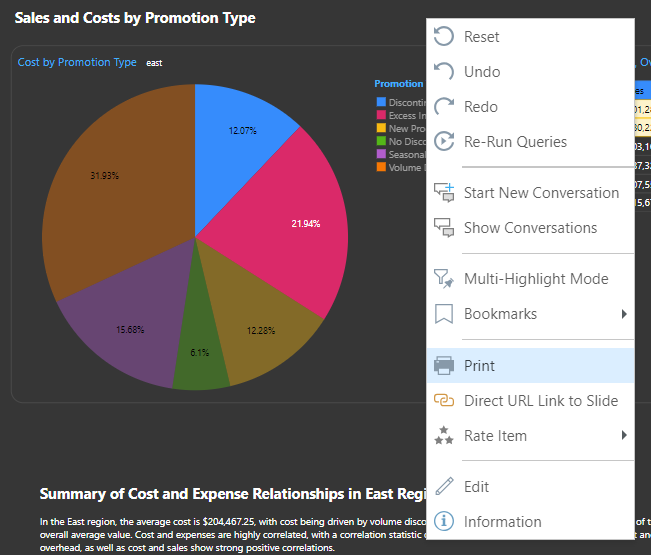
Click Print on the context menu to open the Print & Export dialog.
Present runtime menu
- Click the hamburger menu at the top-left corner of the slide (green arrow).
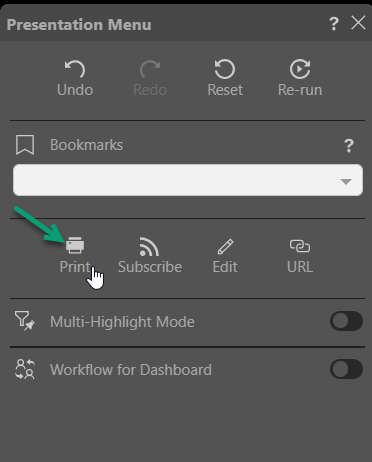
- Click Print (green arrow) to open the Print & Export dialog.
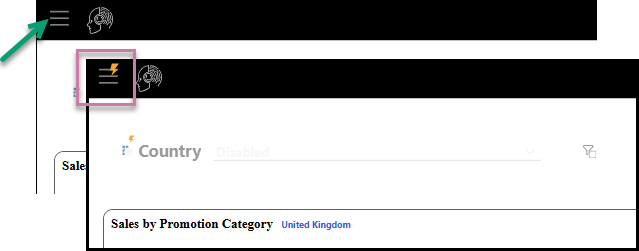
Note: If you see a lightning bolt icon on your Hamburger Menu, your slicer icon, or on a custom button with a jump action, the values from one or more of your slicers have been changed but that change has not been automatically applied to your presentation. For more information, see Run slicers at runtime.
The Present runtime menu opens to the left of the page.
Print & Export dialog
Output
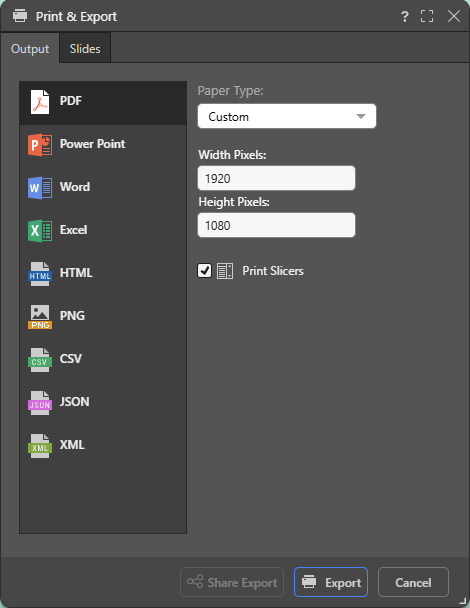
Choose the output type and set the configuration options. Which options are offered depends on the output type. For example, Image Quality is offered if you're exporting to PowerPoint, Word, or PNG.
Note: Unlike discoveries and publications, you cannot export a presentation to the job spooler.
Basic options
The following options can be selected when exporting your content for print:
- Paper Type: (PDF, Power Point, Word, HTML.) Select the paper size that you want to print to. If custom is selected, you will need to provide paper height and width settings.
- Image Quality: (Power Point, Word, PNG.) Select whether to incorporate images at low, medium, or high quality.
- Print Slicers: (PDF, Power Point, Word, HTML, PNG.) Print a graphical representation of a slice if it's on the canvas:
- If this option is selected, the slicer visuals are printed with their current selections.
- If this option is disabled, on-slide slicers will not be shown in the exported or printed presentation, but interactions from the slicers are reflected in the output discoveries.
Excel
When exporting to Excel, there are some size limitations which could result in very large files being exported in the CSV format instead of Excel.
- Click here for more information.
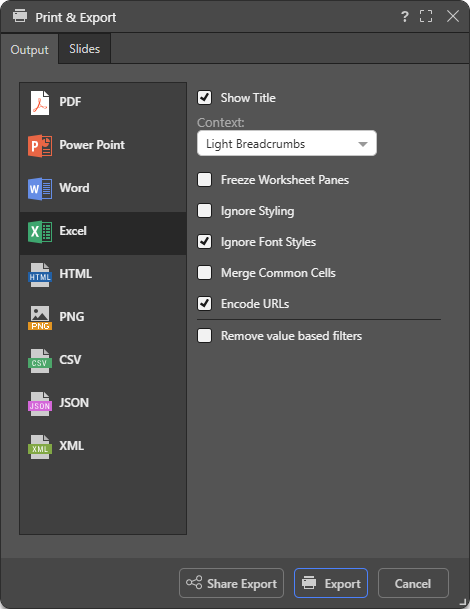
Note: When you export your content to a spreadsheet, the filters are typically applied to the output as set at time of printing.
Show Title
Select the Show Title checkbox to include the report name in the exported spreadsheet. By default, this value reflects the saved name of the report as seen in Discover (status bar and app tab).
Tip: You can override this value by specifying a Custom Value as the Title in the Report Title formatting options for the discovery. In this case, the custom value is shown both on the canvas and in the exported spreadsheet. Note that, if you select Breadcrumbs from the Title field, the title in the exported spreadsheet will either be the Custom Value (where a custom value is defined) or the saved report name (where a custom value is not defined).
Context
Select an option from the Context dropdown list to describe the filtering associated with the discovery:
- Light Breadcrumbs: Include a row describing the report hierarchies and measures, followed by selected slicer values in parentheses.
- Enumerated Breadcrumbs: Include a row describing the report hierarchies and measures, followed by the slicer name and selected slicer values as colon-separated pairs.
- Explicit Details: Add all Breadcrumb details to the spreadsheet as a table of details. The details include Slicers and Parameters and their selected values and details of any Sort and Filter captions that are currently filtering the content of the visual.
- None: Don't include any context information.
Freeze Worksheet Panes
Not relevant to Grids. Freeze the panels in your worksheet to keep the header information (title, visual, context, and the header for the data table) visible while you scroll through the data in the rest of your worksheet.
Ignore Styling
Matrix Grids only. Do not export styles from the source to the target spreadsheet.
Ignore Font Styles
Matrix Grids only. Do not export font styles from the source to the target spreadsheet.
Merge Common Cells
Matrix Grids only. Where adjacent or contiguous cells contain the same content, merge those cells. This has the same effect as the Merge and Center tool.
Encode URLs
Select the Encode URLs checkbox to automatically replace some "unsafe" characters in URLs, such as spaces, colons, or slashes, with their corresponding encoded values. For example, selecting this option replaces ?search=hello world with ?search=hello%20world in the exported spreadsheet.
The relevant "unsafe" characters are: < > \ / ? & # : ; = and Space.
Remove value-based filters
Where a value-based filter has been applied to data, select this option to remove that filter and export the entire dataset rather than only the filtered values.
Note: This option removes value filters and not slicer filters. As an example, it removes value filters that limit data based on values and metrics, such as top 10% of sales, but does not remove the filtering effect of slicers, such as where France is the element selected from a Country slicer. For more information, see Value Filtering in Discover.
CSV, JSON, or XML
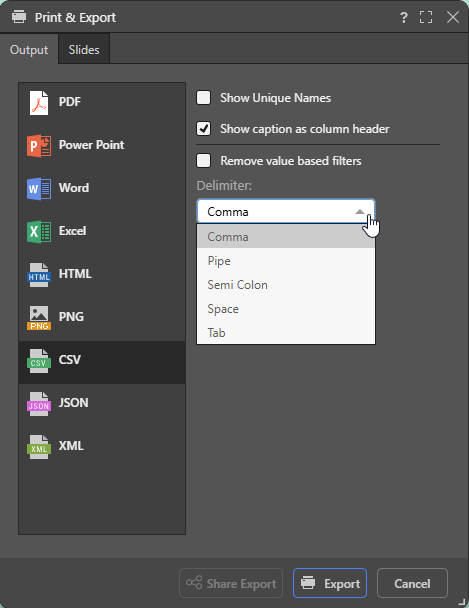
Note: Exporting and printing to JSON, XML, and CSV is not available in the Community edition.
Show unique names
Include unique names for each value.
Show caption as column header
Include the caption as a column header. Where this option is not selected, the column header caption is null.
Remove value-based filters
Where a value-based filter has been applied to data, select this option to remove that filter and export the entire dataset rather than only the filtered values.
Note: This option removes value filters and not slicer filters. As an example, it removes value filters that limit data based on values and metrics, such as top 10% of sales, but does not remove the filtering effect of slicers, such as where France is the element selected from a Country slicer. For more information, see Value Filtering in Discover.
Delimiter (CSV only)
Indicate which character should be used as a delimiter in the CSV. This can be one of Comma, Pipe, Semi Colon, Space, and Tab.
Choosing what to Print
Slides and Presentation
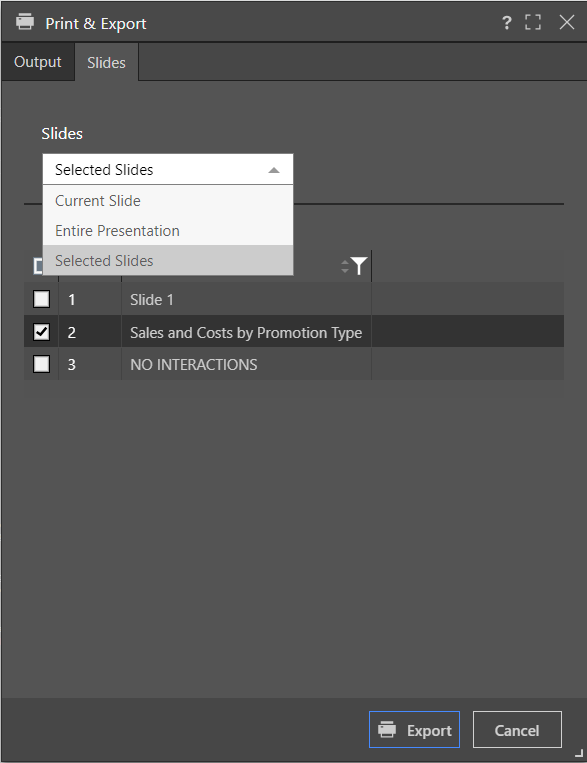
On the Slides tab, select the parts of the presentation you want to print:
- Current Slide: Export the slide currently being viewed.
- Entire Presentation: Export the entire presentation.
- Selected Slides: Specify which slides you want to export. If this option is selected, a list of slides is shown for the user to pick from:
Printing specific visuals on a slide
To print individual items from a slide, at runtime, right-click on the visual item and select Print Report from the context menu. The location of this option depends on which context layout option has been selected. See User Defaults for selecting context menu options and Present Context Menus at Runtime for printing individual items.
The output dialogue detailed above will appear allowing the user to select the output format and other settings.
Share Export
Opens the Share Content dialog. You can share your artifact with other users (recipients), either by attaching the exported content to an email or by sending a Share Link to the recipient for access in Pyramid. For more information, see Share Content.
Related information
Data Source Authentication
If you’re using Windows Authentication or SAP Logon Tickets to connect to your data source, you may be prompted to enter Authentication credentials when saving your changes.
- Click here to learn more about Data Source Authentication.